
| Key This is where you choose your key. |
||
 |
||
| The current key is highlighted in red. Simply click and drag left or right to change the key. The current tonic is always played by C. | ||
 |
||
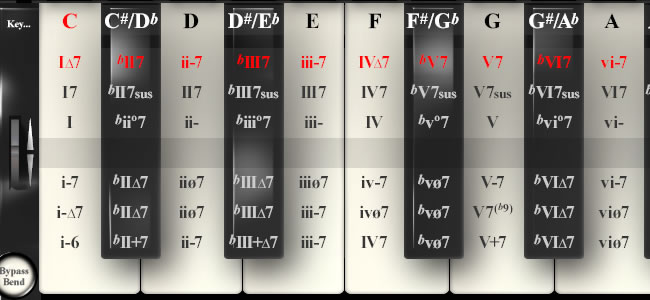
| Chords ChordSpace Playa can assign chords to each note of your MIDI keyboard as per the stylised octave of keys. The current chord types for each note are highlighted in red. |
||
 |
||
| Above,
C plays C major 7; C# plays C#7; D plays D minor 7; D# plays D#7;
E plays E minor 7 etc. There is a Legend for the notation used here. |
||
|
|
||
| Changing
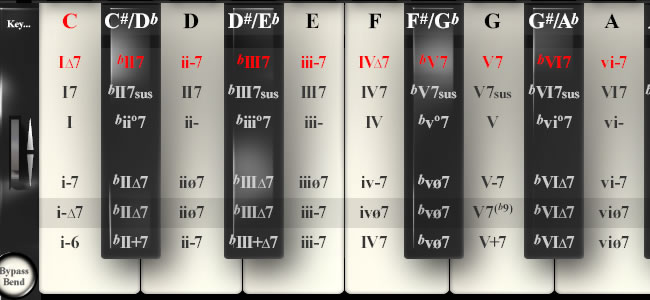
chord type with the pitchbend wheel Move your pitchbend wheel up or (in this case) down, and... |
||
 |
||
...the
grey bar on Playa will move with it. |
||
 |
||
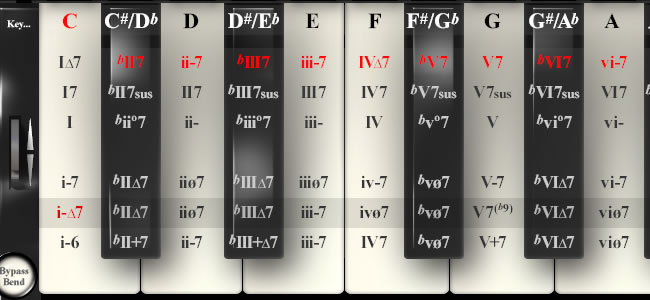
| This chord will then be highlighted in red and latched to the note. Even when you release the pitchbend, | ||
 |
||
|
from now on, that
note will play that chord. In this case C will play a C minor-major 7th chord. This enables you to change chords, on the fly, without taking your hands from your Midi keyboard. It's a lot quicker to do than to describe. |
||
Inversions |
||
 |
||
|
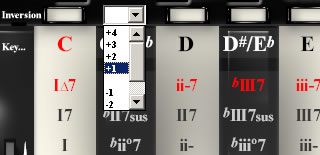
The negative numbers are not true negative inversions. Select -1 and
the root moves down an octave. Select -2 and the root and third move
down an octave and so on. The -1 voicing where the root is dropped into the bass can be very effective. |
||
| Keyboard
splits, chords and scale-locked melody Playa has two main functions. The first is to generate chord, the second is to lock a scale (or mode) to that chord. Playa allows you to split your keyboard into octaves. These can be toggled between chords (light) and scale-locked melody (dark). The following shows the keyboard entirely set to chords... |
||
 |
||
| While this shows the top four octaves set to melody... | ||
 |
||
| Finally, any octave can be transposed up or down... | ||
 |
||
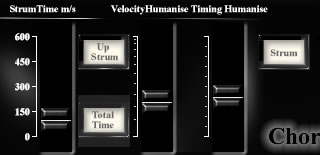
Strum |
||
 |
||
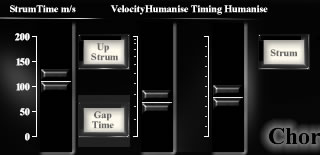
| or Gap (0-200 milliseconds) | ||
 |
||
Both
the timing and velocity of the strum can be humanised. The velocity
follows a log law making it useful over much of its range. |
||
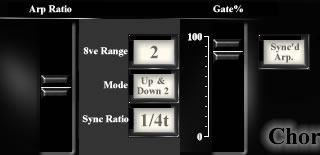
| Synchronised
Arpeggiator The Sync'd Arp has a four octave range and six modes:- Up, Down, Up&Down, Down&Up, Up&Down2 and Down&Up2. The gate determines the note length. |
||
 |
||
| This Arp is synchronised to your hosts BPM clock. The ratio runs from 1 bar to 1/32nd of a bar in standard, dotted and triplet time. | ||
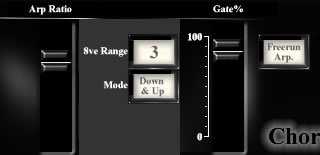
| Freerunning
Arpeggiator This Arp is not synchronised to your hosts BPM clock. Otherwise it's identical to the Sync'd Arp. |
||
 |
||
Modes |
|
|
 |
||
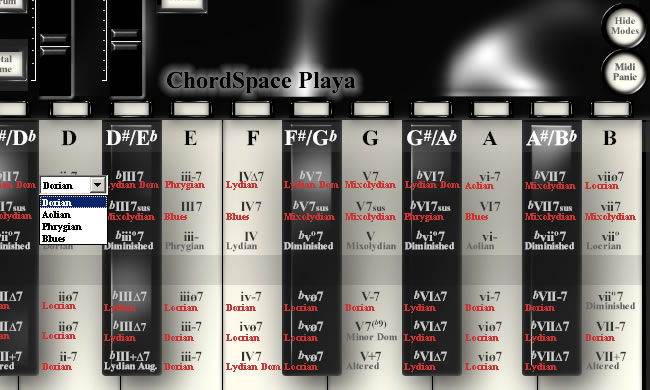
| Only
the relevant modes are available for each chord type as it makes no
sense to play (for instance) a Locrian mode over a dominant 7th chord. A different mode played over the same chord can give a radically different feel to a piece. Some types of chords (e.g. the augmented major 7th) have no choice as there isn't a common alternative mode (to in this case the Lydian Augmented). These chords have their modes shown in grey, and have no associated drop-down list. |
||
Midi |
||
 |
||
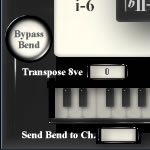
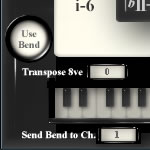
| The
bass note of the chord can be sent to a separate channel for use with
multi-timbral instruments. Once the pitchbend has served it's purpose of selecting chords in Playa it can be released with the Bypass Bend button... |
||
 |
 |
|
...to
resume its original function. |
||
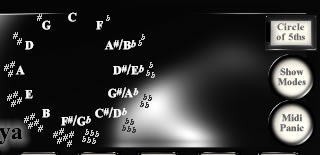
| ? Clicking this button cycles through a couple of useful static displays. A circle of fifths complete with sharps and flats... |
||
 |
||
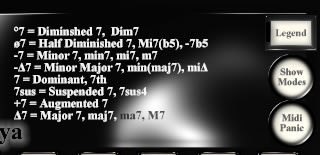
| ...and a legend of the symbols used in ChordSpace Playa... | ||
 |
||
| Finally, no Midi plugin would be complete without a panic button to send an "All notes off" for those occaisional hanging notes. |
||